Mobile automation often fails for a surprisingly simple reason: a popup appeared.
The script expected to tap a button. A permission dialog covered it. The app showed an update prompt. The network failed and displayed a retry screen. The account showed a warning that did not exist yesterday.
For one phone, this is easy to fix. For a fleet of cloud phones, it becomes a recurring operations problem.
Popups are not all the same
The first mistake is treating every popup as something to close.
Some popups are harmless. Some are required. Some are important warnings.
Examples:
- Notification permission.
- Gallery or file permission.
- Location permission.
- App update reminder.
- Network retry prompt.
- Login expiration notice.
- Account security warning.
- Terms or policy notice.
Clicking through all of them with the same rule is risky.
Why fixed scripts struggle
AutoJS scripts and other mobile automation scripts work best when the page is predictable.
They are usually written around expected elements:
- tap this button;
- wait for this page;
- input this text;
- confirm this result.
A popup changes the page state. The script may tap the wrong element, wait forever, or stop with an error.
That does not mean automation is useless. It means the workflow needs a layer for state recognition.
A practical popup handling model
A reliable system should classify the interruption first.
Use a simple model:
- Is this a known popup?
- Is it safe to handle automatically?
- What action should be taken?
- Should the task continue, retry, or pause?
- Should a human review it?
For example:
- A gallery permission popup during upload may be handled automatically.
- A network retry prompt may be retried once or twice.
- An account risk warning should be recorded and escalated.
- A new unknown screen should be marked instead of blindly clicked.
A real example: media upload blocked by permissions
Suppose a content team runs a batch upload task.
The normal flow is:
- open app;
- choose media;
- add caption;
- publish.
But some devices show a gallery permission prompt the first time the app opens. If the script does not handle that prompt, the upload screen never appears.
A better workflow detects the permission prompt, handles it if allowed, records the event, and continues the upload. The team can later see that those devices required permission handling.
Why logs matter
Popup handling should leave a record.
If the system closed a popup, retried a page, or paused a task for review, the operator should be able to see that.
Otherwise, the workflow becomes hard to trust.
Good logs answer:
- What popup appeared?
- Which device saw it?
- What did the system do?
- Did the task continue successfully?
- Does a human need to inspect anything?
How AI can help
AI can help identify whether a screen is an expected step, a common popup, or an unusual exception.
It can also help suggest fixes when a script keeps failing on the same kind of interruption.
But AI should be controlled. Teams should be able to decide which categories are safe for automatic recovery and which categories require human review.
How QCCBot fits
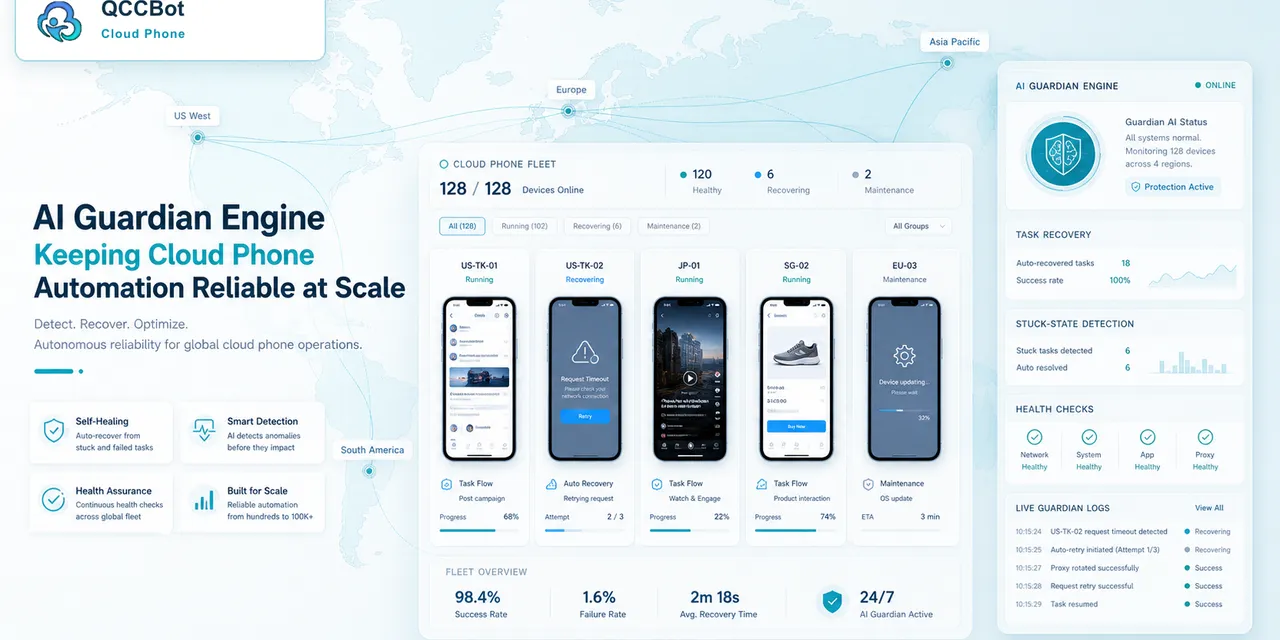
QCCBot combines cloud phone execution, task logs, AI exception recognition, and controlled AI takeover.
When a cloud phone stops on an unexpected screen, QCCBot can help classify the interruption and guide the workflow toward recovery or review.
For teams dealing with repeated app popups and stuck cloud phone tasks, QCCBot can help turn those interruptions into manageable exception workflows.
Questions to ask before choosing a tool
If your team is evaluating tools for mobile app popups and permission prompts, avoid choosing based only on a polished demo.
Ask practical questions:
- Can we group devices by account, market, project, or task?
- Can we run the same script across a small test group first?
- Can we see task status without opening every phone?
- Can failures be grouped by reason?
- Can AI help debug script errors?
- Can AI recovery be turned on or off?
- Can sensitive issues stay under human control?
These questions reveal whether the tool fits daily operations.
What good content teams and operations teams care about
They care less about abstract automation and more about predictable routines.
A good routine says: this task runs at this time, on this group, with this expected result, and these exceptions are handled in this way.
Once the routine is clear, automation becomes easier to improve. Without that routine, even advanced AI can feel chaotic.
A practical first step
Pick one task that wastes time every week. Run it on three cloud phones. Record every place it gets stuck. Then decide which stuck points are safe to automate and which should be reviewed.
That small test will teach more than a large rollout with no clear measurement.
How QCCBot fits
QCCBot gives teams the pieces to run that test: Android cloud phones, script execution, AI script generation, logs, and exception handling. The goal is to make repeated mobile work easier to operate, not harder to understand.
If this sounds like the kind of mobile work your team deals with, QCCBot can help you test the workflow on cloud phones and decide what should be automated first.