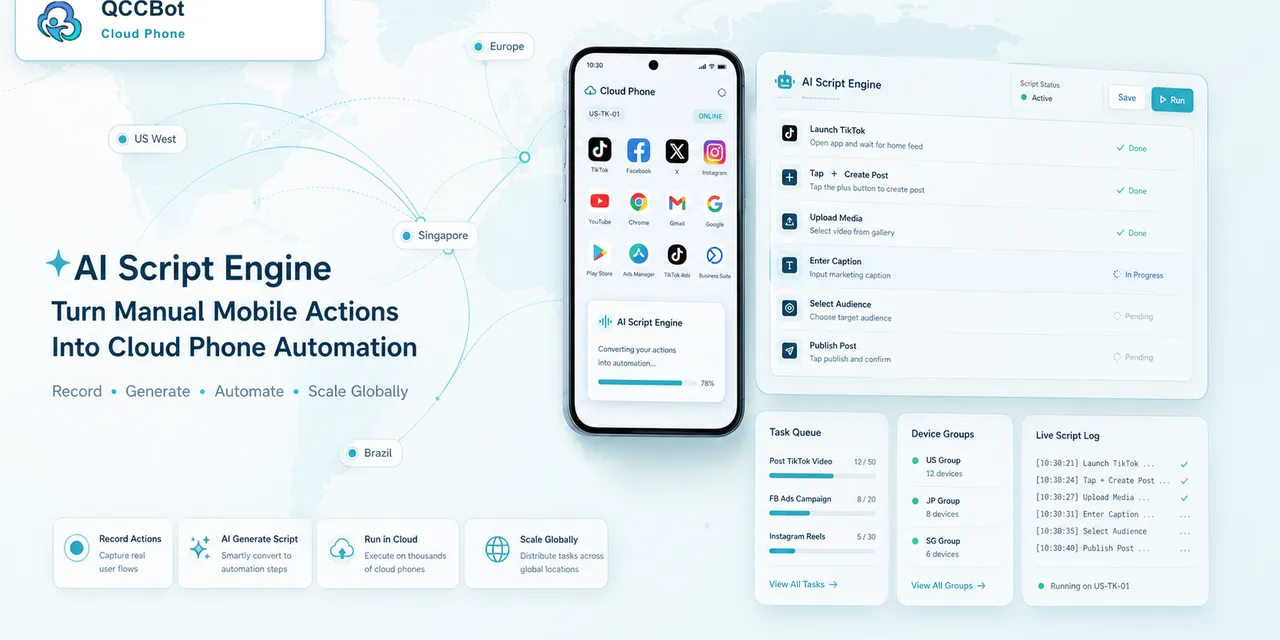
“Can I automate cloud phone tasks without coding?”
That is a real question many teams ask. The honest answer is: you may still need scripts, but you do not always need to write them from zero.
What users really want
Most users do not care whether the automation is called AutoJS, script engine, or workflow.
They want the phone to:
- Open an app.
- Click through common steps.
- Upload or check content.
- Record a result.
- Handle simple interruptions.
The goal is repeated work, not code for its own sake.
Where AI helps
AI helps when the user can describe the task clearly.
For example:
“Open the app, check if the account is logged in, close common popups, and report the result.”
That kind of instruction can become a first script.
What AI should not hide
Automation still needs testing.
Before running across many cloud phones, test on a small group. Check whether the script handles slow loading, popups, login status, and failed steps.
No-code does not mean no-check.
How QCCBot helps
QCCBot’s xeasy code skill lets users describe a cloud phone task and generate AutoJS scripts. The same AI workflow can help debug runtime errors and improve the script after testing.
For many teams, this changes automation from a developer-only task into an operator-friendly process.
You can explore QCCBot’s AI scripting and cloud phone automation features on the official website.
Common mistakes to avoid
Teams usually run into trouble with AI cloud phone automation for predictable reasons.
The first mistake is trying to automate too much at once. A long task with ten uncertain screens is hard to debug. It is better to automate one clean part first, then expand after the team understands the exceptions.
The second mistake is ignoring account state. Many failures are not script failures. The account may be logged out, limited, waiting for verification, or sitting on a page the script did not expect.
The third mistake is treating every popup as safe. Some prompts can be closed. Some should be allowed. Some should stop the workflow and ask for human review.
A better workflow pattern
A more reliable pattern looks like this:
- Prepare the cloud phone group.
- Confirm the account or app is in the expected starting state.
- Run one focused script task.
- Record the stage reached by each device.
- Retry only the failures that are safe to retry.
- Group the remaining failures by reason.
- Let humans review the sensitive cases.
This pattern is simple, but it prevents a lot of wasted time.
What a good result should look like
The output should be readable by an operator, not only a developer.
A useful result might say:
- 32 devices completed normally;
- 5 devices hit a network retry screen;
- 3 accounts need login review;
- 2 devices stopped on a permission prompt;
- 1 device needs script adjustment.
That result gives the team a next step. A plain “failed” status does not.
Why this is not a technical-paper problem
Most teams do not need a complicated architecture diagram to get started. They need a clear way to run a mobile task, see what happened, and avoid checking every phone manually.
If this sounds like the kind of mobile work your team deals with, QCCBot can help you test the workflow on cloud phones and decide what should be automated first.
How to turn this into a weekly operating routine
A useful article should leave the reader with a next step, so here is a simple routine teams can use for cloud phone automation.
First, choose one workflow owner. This does not have to be a developer. It can be the person who understands the daily mobile task best. That person should define what normal means, what abnormal means, and which situations are too sensitive for automation.
Second, create a small test group. Three to five cloud phones are enough. Run the workflow there before expanding. The goal of the test is not only to prove that the script can pass. The goal is to discover the common ways it fails.
Third, review the failed runs by category. Do not open every device in random order. Group issues into practical buckets:
- app loading or network delay;
- permission or update popup;
- account logged out;
- UI changed after app update;
- script timing problem;
- human-review case.
Fourth, improve the workflow one category at a time. If half the failures come from a permission popup, solve that first. If the biggest issue is login state, add a pre-check before the main task. This is how thin automation becomes a real operating system.
What a good internal note should include
For every repeated mobile task, keep a short internal note:
- what the task is for;
- which cloud phone group it runs on;
- what success looks like;
- what the most common failures are;
- what AI is allowed to recover;
- what must go to a human;
- where the logs are reviewed.
This note prevents the workflow from living only in one person’s head.
The practical takeaway
The goal is not to make every mobile task fully automatic on day one. The goal is to make the work less blurry. Once the team can see the task state, failure reason, and review queue, automation becomes easier to trust.
That is the type of workflow QCCBot is meant to support: repeated Android app work that needs cloud phones, scripts, AI debugging, logs, and controlled exception handling in one place.