An AutoJS script can work perfectly on Monday and fail on Tuesday.
That does not always mean the script was badly written. Mobile apps change constantly. Buttons move. Labels are renamed. A new dialog appears. A page loads more slowly. One account sees a banner that another account does not. Automation depends on what the script can find on the screen, so a small UI change can break a repeated task.
Quick answer
AutoJS scripts usually fail after UI changes because selectors no longer match, timing assumptions become wrong, new popups interrupt the flow, or different accounts see different screens. The fix is not only rewriting code. Teams need test groups, logs, screenshots, recovery rules, and a clear process for updating scripts safely.
Common reasons scripts break
The most common failure types are simple:
- the button text changed;
- the button moved into a different container;
- a new popup appears before the target screen;
- loading takes longer than expected;
- a permission prompt appears on only some devices;
- one account sees a warning page;
- the app language or region changed;
- the script starts from the wrong screen.
The script may still be logically correct. It just cannot see the same UI it was written for.
Why one-phone testing is not enough
Testing on one phone can hide problems.
One account may already be logged in. Another may need verification. One phone may have cached the old page. Another may load the new version. One device may have permissions granted. Another may not.
That is why batch automation should always include a small test group with mixed states. The goal is not only to see whether the script passes. The goal is to discover the ways it fails.
A practical debugging flow
When a script fails after a UI change, do not edit randomly.
Use this flow:
- Identify the exact step where the script stopped.
- Compare the expected screen with the actual screen.
- Check whether the failure is selector, timing, popup, account state, or permission related.
- Update the smallest part of the script.
- Test on a small group before scaling.
- Record the failure type so the team can recognize it next time.
This makes the script more maintainable. It also prevents teams from creating a new bug while fixing the old one.
Where AI can help
AI is useful when the team has logs, screenshots, and script context.
It can:
- explain why a selector no longer matches;
- suggest a more stable way to locate the UI element;
- add waits or fallback checks;
- classify unknown screens;
- recommend whether a case should retry, pause, or go to human review.
AI should not be treated as magic. It needs evidence from the run. The more observable the workflow is, the more useful AI debugging becomes.
How QCCBot fits
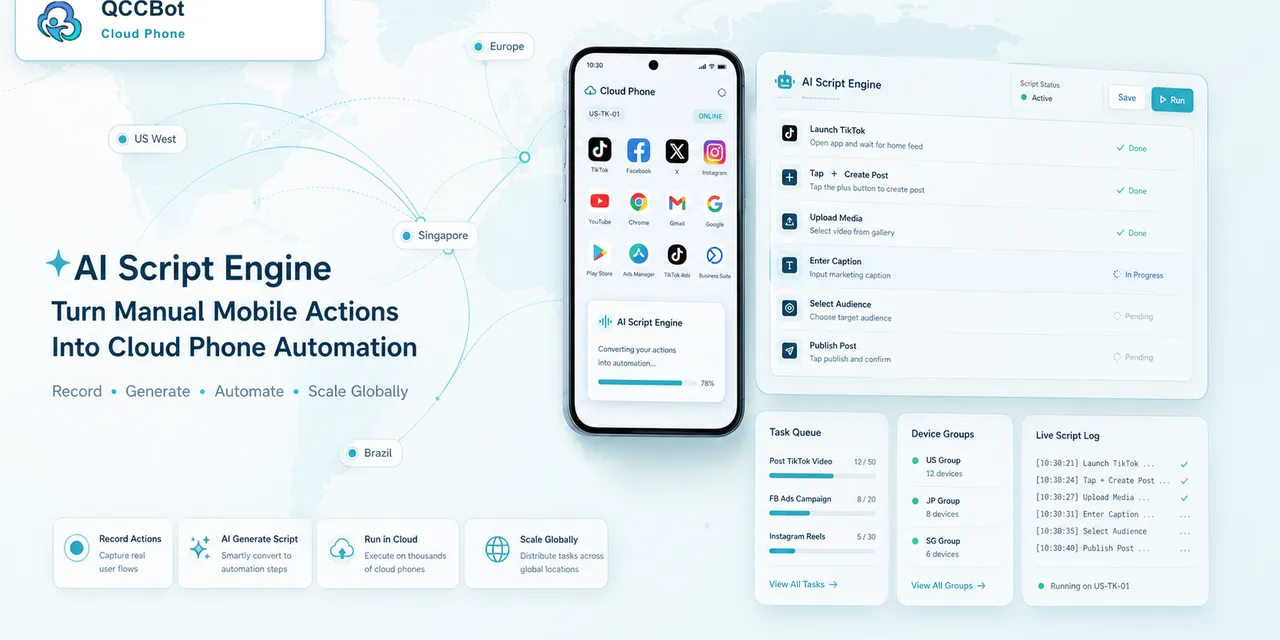
QCCBot combines Android cloud phones, xeasy code AI script generation, AI-assisted debugging, task logs, and controlled exception takeover. That helps teams move from “the script failed” to “this step failed for this reason, and here is the next action.”
For teams maintaining repeated Android app workflows, QCCBot provides an AI-assisted cloud phone environment where AutoJS scripts can be generated, tested, debugged, and monitored across many devices.
FAQ
Can AI automatically fix every broken script?
No. AI can suggest or apply fixes for many common cases, but sensitive screens and unknown warnings still need human review.
Should scripts use text or coordinates?
Coordinates can be fragile because layouts vary. Text, accessibility attributes, and screen-state checks are usually easier to maintain when available.
How often should scripts be retested?
Retest before important campaigns, after major app updates, and whenever failure rates suddenly increase.
The bigger issue is change management
When an AutoJS script breaks, the visible problem is code. The deeper problem is usually change management. Mobile apps update often, accounts enter different states, and UI surfaces change by region, language, or user history.
Teams that treat every failure as a coding problem end up patching scripts reactively. Teams that treat failures as operational signals can build a better loop: test, classify, fix, document, and monitor.
A useful failure label system
Keep the labels simple enough for operators to use:
| Label | Meaning |
|---|---|
| UI changed | The expected button, text, or layout is different |
| Timing issue | The page appeared, but not before the script acted |
| Account state | The account is logged out, limited, or blocked |
| Permission/popup | A system or app dialog interrupted the flow |
| Human review | The screen is sensitive or unfamiliar |
These labels help AI debugging because they give the model clearer evidence. They also help the team decide whether to update the script, adjust waits, add a pre-check, or send the device to a human.
Why QCCBot matters here
QCCBot is useful because it connects the broken script to the real cloud phone run. The team is not only looking at a code snippet. It can review device state, task logs, app context, and exception categories together.
That is the difference between fixing one line of code and improving the workflow.