TikTok Shop teams often discover problems at the worst time: right before a campaign, product update, or live session.
The mobile app opens, the upload flow starts, and then something blocks the process. The product page does not load, a permission prompt appears, the account needs review, or the flow has changed after an app update.
This is exactly the kind of mobile workflow that becomes painful across many accounts.
What people search for
The search may sound like:
- TikTok Shop product upload stuck
- TikTok Shop app upload not working
- check many TikTok Shop accounts
- mobile product upload workflow failed
- cloud phone TikTok Shop operations
These searches come from teams that need a practical check, not a theory about social commerce.
Why upload flows get stuck
Mobile upload workflows can fail because of:
- login expiration;
- missing media permission;
- app version changes;
- region or market differences;
- slow loading;
- product link errors;
- account warnings;
- unknown prompts;
- changed button labels.
The failure may not be the same on every account. That is why checking one phone is not enough.
A better pre-upload check
Before a campaign, run a readiness workflow:
- Open the target app.
- Confirm the account is logged in.
- Check the shop or upload entry.
- Confirm media permissions.
- Confirm product or campaign page access.
- Detect warnings or account prompts.
- Record accounts that need human review.
This does not need to publish anything. It only checks whether the account is ready.
What should be automated
Safe automation can check:
- whether pages load;
- whether known buttons appear;
- whether media permissions are enabled;
- whether the account reaches the expected page;
- whether a known prompt blocks the flow.
This gives the team visibility before the real work begins.
What should stay manual
Do not automate sensitive business decisions without review.
Be careful with:
- final publishing;
- product price changes;
- account risk warnings;
- verification prompts;
- platform policy messages;
- unknown pages.
AI can classify these cases and route them to review. It should not silently click through them.
How QCCBot fits
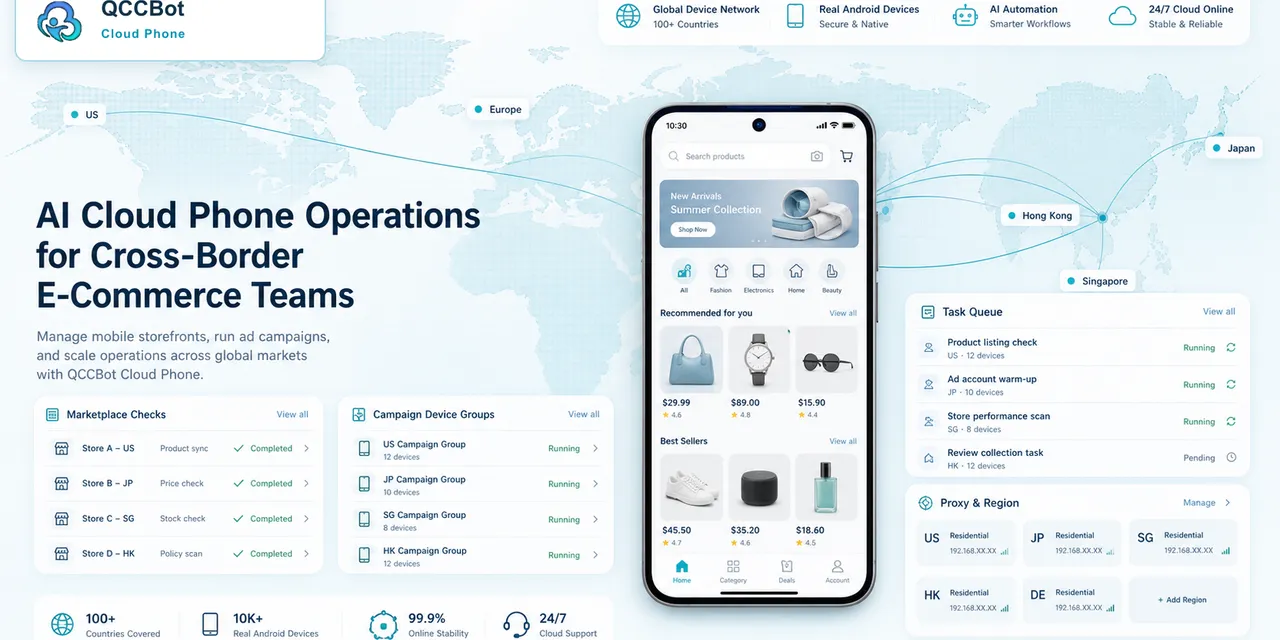
QCCBot lets teams run Android cloud phones in groups, execute AutoJS scripts, review task logs, and use AI to generate or debug mobile workflows.
For TikTok Shop operations, the value is practical: check account readiness, find blockers early, and reduce the number of phones a person needs to open manually.
If your team keeps finding upload blockers too late, QCCBot can help turn TikTok Shop mobile checks into repeatable AI-assisted cloud phone workflows.
What the final report should show
The output should separate accounts into useful groups:
- ready for upload;
- login required;
- permission blocked;
- upload entry changed;
- product page issue;
- warning needs review;
- unknown screen.
This is far more useful than a simple success or failure count.
A campaign-day routine
For a campaign or live selling day, run checks in three windows.
The day before, check account login, app version, upload entry, and product page access. This catches slow problems that need account owners or content teams.
On the morning of the campaign, run a smaller check on the accounts that matter most. Confirm the mobile app still reaches the expected pages and that permissions are not blocking media access.
After the campaign, review failures and update the script or checklist. If a new prompt appeared, add it to the known exception list. If a region behaved differently, document the market and account group.
Why this is better than manual spot checks
Manual spot checks usually focus on the accounts people remember. Automated readiness checks cover the whole group.
The value is not that QCCBot makes every business decision. The value is that it helps the team find blockers before the expensive moment arrives. People still review sensitive cases, but they start with a sorted list instead of a pile of phones.
A practical checklist before upload day
Before a TikTok Shop upload batch, prepare the environment:
- confirm account login state;
- confirm store permissions;
- confirm app version;
- confirm region and proxy settings;
- prepare product titles and media;
- test one upload from start to finish;
- check whether approval or draft states appear;
- define when the script should stop.
This checklist is simple, but it prevents many avoidable failures. Most upload problems become expensive because teams discover them after the batch has already started.
How to handle partial success
Product upload workflows often do not fail cleanly. Some products upload. Some stay in draft. Some hit a warning. Some need media replacement.
The team should track:
- uploaded successfully;
- saved as draft;
- missing media;
- category warning;
- price or inventory issue;
- account permission issue;
- unknown screen.
This is much better than a single failed status. It tells the operator what type of work remains and whether the next step belongs to the content team, store owner, or script maintainer.
Why this content matters for real users
People searching for this problem are usually not looking for a grand automation strategy. They are trying to get products uploaded without losing a day to repetitive phone work.
That is why the article should stay practical. The reader needs to know what to check, what to automate, what to stop, and how QCCBot fits into the workflow only after the problem is clear.