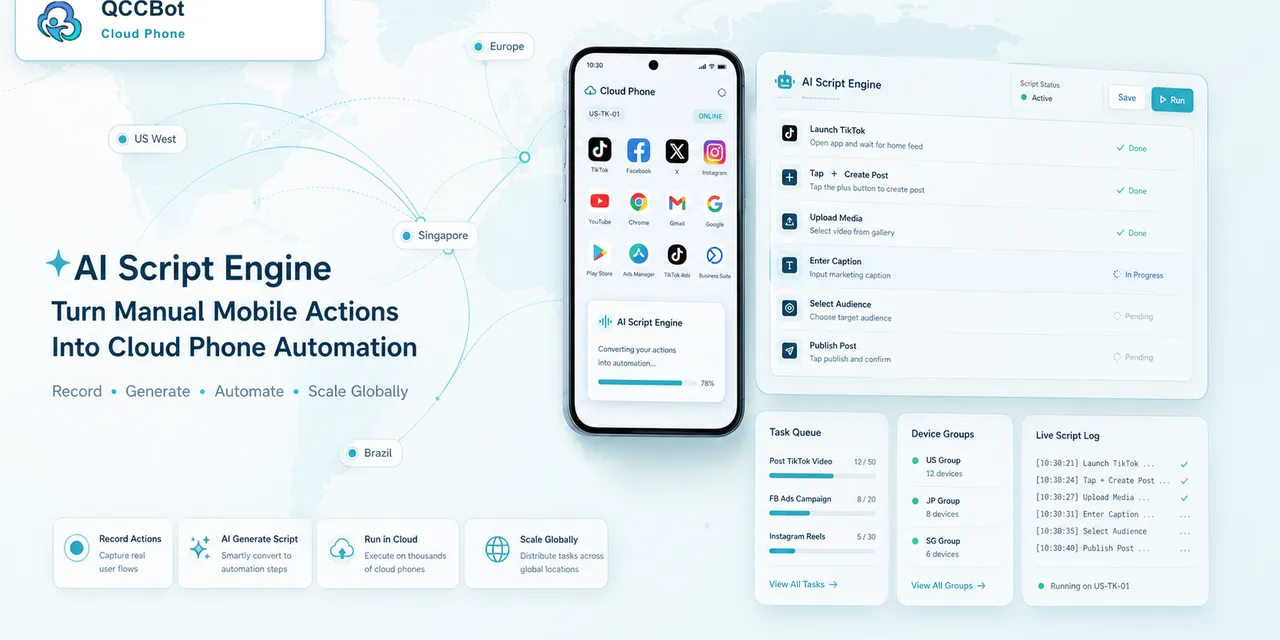
If your AutoJS script worked yesterday and fails today, the first suspect is not always the script.
Mobile apps change. Buttons move, text labels change, permission prompts appear in a new place, and loading time becomes less predictable after an app update. A script that depends on the old screen can stop even if the business workflow is still the same.
This is one of the most common pain points in mobile app automation: the task is simple, but the app interface is not stable forever.
What the user usually searches for
People do not usually search for “mobile automation resilience strategy.”
They search things like:
- AutoJS script stopped after app update
- Android automation button not found
- script cannot find text after UI change
- app UI changed automation broke
- cloud phone script worked before but now fails
These searches all point to the same problem: the automation is too tightly tied to one version of the screen.
Why UI changes break scripts
AutoJS scripts often depend on screen signals such as:
- visible text;
- button positions;
- element IDs;
- image recognition;
- timing delays;
- expected navigation order.
When the app changes any of these, the script may fail at the first step that no longer matches reality.
The failure can look vague. The script may wait forever, tap the wrong place, return to the previous page, or stop with an element-not-found error.
What to check first
Start with the failed step, not the whole script.
Ask:
- What was the script trying to do?
- What screen did the cloud phone actually show?
- Was the target text still visible?
- Did the button move?
- Did a popup appear before the expected screen?
- Did the app load more slowly than before?
- Did the account land on a different page?
This helps separate a real script bug from a changed app state.
A simple debugging workflow
Use a small test group before changing the script everywhere.
- Run the old script on one cloud phone.
- Capture the screen where it stops.
- Compare that screen with the expected screen.
- Identify whether the issue is text, position, timing, popup, or navigation.
- Adjust only the failed step.
- Test on a few account states before running the full batch.
The goal is to avoid rewriting a whole script when only one screen condition changed.
Where AI helps
AI is useful when the failure has context.
If the system can see the script step, logs, and screen state, AI can help explain:
- which selector may have failed;
- whether the visible screen is unexpected;
- whether the script should wait longer;
- whether a popup should be handled;
- whether this should stop for human review.
AI should not blindly patch every script. It should help the operator understand what changed and suggest the smallest safe fix.
How QCCBot fits
QCCBot gives teams a place to test and recover mobile automation in real Android cloud phones. xeasy code AI can help generate and debug AutoJS scripts, while task logs and AI exception handling make it easier to see where a workflow stopped.
If an app update breaks a repeated mobile task, QCCBot can help your team test the changed flow on cloud phones and refine the AutoJS script with AI support.
What not to do
Do not immediately add longer waits everywhere. That may hide the real issue and make the whole workflow slower.
Do not remove all safety stops. If the script sees an unknown screen, it should stop clearly instead of tapping through it.
Do not run the patched script across every device before testing it on a small group. One broken fix can create many broken tasks.
A better long-term habit
Treat mobile scripts as living workflows.
Each important script should have:
- a short task description;
- expected start and success screens;
- known popups;
- safe retry rules;
- stop conditions;
- logs that non-developers can understand.
When the app UI changes, this documentation makes the fix much easier. The team does not need to guess what the script was supposed to do.
A simple operator playbook
When a script breaks after an app UI change, operators should avoid editing the script blindly. A better playbook is:
- Confirm whether the failure happens on one cloud phone or across a full group.
- Capture the screen where the script stopped.
- Compare that screen with the last known successful run.
- Check whether the button text, page order, popup, or loading behavior changed.
- Run the script on a small test group before returning it to batch mode.
This keeps the problem small. If only one phone fails, the issue may be account state, network, login, or device condition. If every phone fails at the same step, the app likely changed and the script needs a real update.
How to write the postmortem
Even a small script failure deserves a short note, because the same type of issue often returns later.
Record:
- the app version;
- the script name;
- the cloud phone group;
- the failed step;
- the visible UI difference;
- what was changed in the script;
- whether AI suggested or applied the fix;
- what test confirmed the fix.
This does not need to be a formal engineering document. A short operational note is enough. The value is that the next person does not have to rediscover the same failure from zero.
What to improve before the next run
After the script is fixed, improve the workflow around it:
- add a screenshot at the fragile step;
- add a timeout instead of waiting forever;
- add a fallback when a button label changes;
- route unknown screens to review;
- keep one small group for testing new script versions.
That is how teams move from “the script failed again” to “we know where it failed, why it failed, and how to recover faster next time.”