Mobile app QA often starts with a simple request: “Can someone send me screenshots from the app?”
Then the work becomes messy. Different people use different phones, accounts, regions, app versions, languages, and network conditions. The screenshots arrive in chat, and nobody knows whether they are comparable.
For mobile teams, QA screenshots need structure.
What people search for
Common searches include:
- collect mobile app screenshots for QA
- test app screens in different regions
- Android cloud phone screenshots
- mobile app QA without physical devices
- batch app screenshot workflow
The person searching usually needs a repeatable way to inspect the app.
Why screenshots become messy
Screenshots are hard to compare when:
- device environments differ;
- accounts are in different states;
- regions show different content;
- app versions are not the same;
- people capture different steps;
- no one records the exact workflow.
The screenshot itself is not enough. It needs context.
What a good screenshot workflow records
Each screenshot should have:
- cloud phone ID;
- account or test group;
- region or proxy setting;
- app version;
- workflow step;
- timestamp;
- success or failure state;
- notes about warnings or popups.
This makes screenshots useful for product, QA, marketing, and operations teams.
A simple workflow
Start with a fixed set of screens:
- App launch.
- Login or account state.
- Home page.
- Key feature page.
- Upload or checkout entry.
- Warning or abnormal state if present.
Run the same steps on each cloud phone and store the result with logs.
Where AI helps
AI can help summarize screenshots and logs.
It can flag:
- wrong language;
- missing button;
- unexpected popup;
- slow loading;
- page mismatch;
- repeated failure pattern.
AI should support QA review, not replace the final product decision.
How QCCBot fits
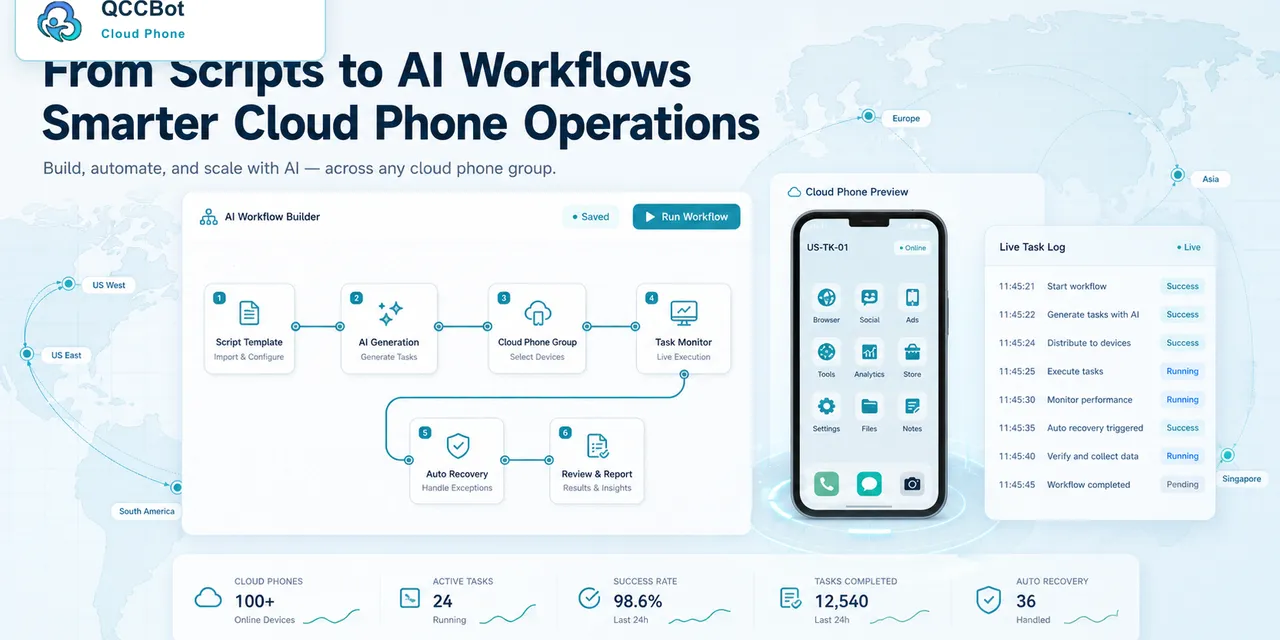
QCCBot provides Android cloud phones, grouped workflows, AutoJS scripts, logs, and AI assistance. This helps teams collect mobile QA evidence without passing physical phones around.
If your team needs repeatable screenshots across accounts or regions, QCCBot can help run mobile app QA checks on cloud phones and organize the results.
What to avoid
Avoid random screenshots with no context.
Avoid comparing screenshots taken from different app versions without labeling them.
Avoid asking people to manually repeat long workflows when a cloud phone script can capture the same states consistently.
A better QA habit
Treat screenshots as evidence, not decoration.
The best screenshot is not just clear. It is tied to a device, account state, workflow step, and timestamp. That is what makes it useful when the team needs to debug a mobile issue.
How teams can use screenshot sets
Screenshot sets are useful beyond QA.
Product teams can compare how a feature appears across regions. Marketing teams can confirm whether campaign pages are visible. Operations teams can prove that a workflow reached the expected screen. Support teams can show developers exactly where users or accounts get stuck.
This is why consistent capture matters. A screenshot from an unknown device with no context is hard to trust. A screenshot tied to a cloud phone group, account type, app version, and workflow step is evidence.
A good naming habit
Use a predictable naming pattern:
- date;
- region;
- account group;
- app version;
- workflow step;
- result.
For example: 2026-06-09_us_group-a_upload-entry_success.
That small habit prevents a lot of confusion when the team reviews dozens or hundreds of images later.
How to review screenshot sets
A screenshot set should be reviewed in passes, not all at once.
First, check completeness:
- Did every cloud phone capture every required step?
- Are any screenshots missing?
- Are timestamps present?
- Are app versions labeled?
Second, check correctness:
- Is the expected page visible?
- Is the right language shown?
- Is the right region shown?
- Are buttons, prices, warnings, or content blocks correct?
Third, check abnormal patterns:
- Did one region show a different page?
- Did one app version show a different flow?
- Did one account group hit more warnings?
- Did the same popup appear repeatedly?
This review process helps teams find patterns instead of arguing over random images.
Where QA and operations meet
Mobile QA is not only a product task. In many teams, the same screenshots help operations make daily decisions.
For example, a marketplace team may need to confirm whether product pages load correctly. A content team may need to verify that upload screens appear. A support team may need proof that a user-facing warning appears in one region but not another.
QCCBot is useful here because it gives the team a controlled set of Android environments. The screenshots come from known devices, known accounts, and known workflow steps, which makes them easier to trust.
What to do when screenshots disagree
When screenshots disagree, do not assume the app is broken immediately. Check:
- whether the accounts are in the same state;
- whether the app version is the same;
- whether the proxy region is the same;
- whether the workflow waited long enough;
- whether the screen was captured before loading finished.
Many QA disagreements are environment disagreements. A cloud phone workflow helps expose those differences instead of hiding them.