One of the most common cloud phone automation problems is not a broken script. It is a login or verification screen.
The script opens the app, expects the home page, and instead finds a phone number prompt, a password screen, a security notice, or a verification request. The task stops, the batch result looks messy, and the operator has to decide what to do next.
This problem needs a careful workflow, not just a faster retry button.
The short answer
When a cloud phone task gets stuck on login or verification, do not treat it as a normal script failure. Classify it as an account-state issue. The safest workflow is to stop the automation, label the device, send it to human review, and only resume after the account state is clean.
Why login screens break automation
Most automation scripts assume a known starting point. Login screens break that assumption.
They can appear because:
- the session expired;
- the app updated;
- the account was used from a different location;
- the platform triggered a security check;
- the device environment changed;
- the account was inactive for too long;
- the app cleared local state.
Some of these are harmless. Some are sensitive. The system should not guess.
Do not blindly bypass verification
It is tempting to ask AI or a script to “just continue.” That is dangerous.
Verification pages may involve account security, platform rules, personal data, or actions that should not be automated without human review.
A safer rule is:
- normal popups can be handled automatically if approved;
- loading delays can be retried;
- login and verification screens should be labeled;
- sensitive account prompts should stop the workflow.
This gives the team control.
Build a login-state pre-check
Before running the main task, create a small pre-check workflow.
The pre-check should answer:
- Is the app open?
- Is the account already logged in?
- Is the expected page visible?
- Is there a login button?
- Is there a verification prompt?
- Is there a risk or warning message?
Only devices that pass the pre-check should run the main automation.
This prevents one large task from failing halfway through because the starting state was wrong.
What the operator should see
A useful dashboard should not only say “failed.” It should give the operator a reason.
For example:
- 41 devices ready;
- 6 devices need login;
- 3 devices show verification;
- 2 devices have network loading issues;
- 1 device needs script review.
That result tells the team what to do next. It also prevents unnecessary debugging.
Where AI helps and where it should stop
QCCBot can help in two ways.
First, xeasy code AI can help generate pre-check and status-check scripts so teams can detect login state before running deeper tasks.
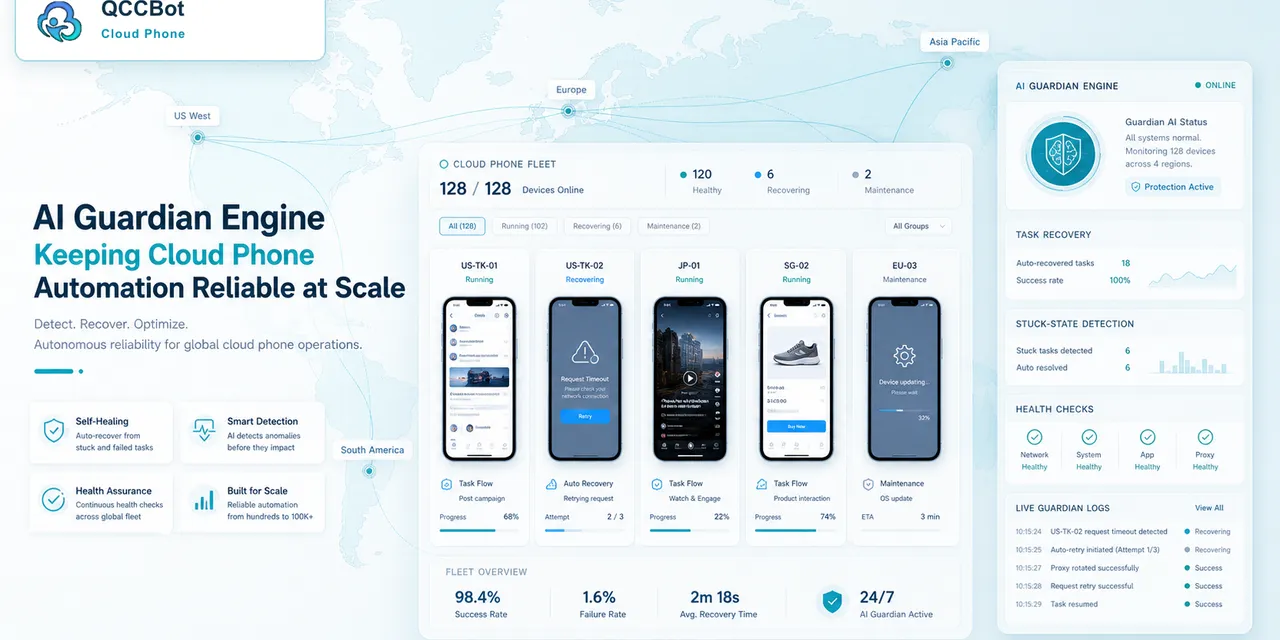
Second, AI Guardian-style monitoring can help identify stuck tasks and route them into clearer categories. If AI takeover is enabled, it can recover from approved, repeatable issues, but account verification should remain a human-review case.
The point is not to let AI click through everything. The point is to reduce confusion.
A practical workflow
Use this pattern:
- Run a login-state pre-check.
- Separate ready devices from blocked devices.
- Run the main task only on ready devices.
- Label login and verification cases.
- Assign sensitive cases to human review.
- Resume only after the account is confirmed safe.
- Track how often login issues happen by account group.
Over time, this shows which account groups are stable and which need better preparation.
FAQ
Can AI handle login verification automatically?
For sensitive verification, usually no. AI can help detect and label the state, but the final action should be controlled by the team.
Should failed login devices be retried?
Only after the account state is fixed. Repeating the same script on a login screen usually wastes time and may increase account risk.
What should be automated first?
Automate detection before action. Knowing which devices are blocked is already a major improvement.
Practical takeaway
Login and verification screens are account-state problems. Treating them as ordinary script failures creates confusion and risk.
If your team needs clearer cloud phone task states, QCCBot can help detect login issues, separate review cases, and keep repeated Android app workflows organized.