AI browser agents are one of the most talked-about automation ideas in 2026.
They make sense. Many workflows start in a browser: search, forms, dashboards, documents, order pages, tickets, and internal tools. If AI can operate a browser, it can help with a lot of desk work.
But many teams hit a boundary quickly:
The workflow does not stay in the browser.
It moves into mobile apps.
The user question
People may search:
- “AI agent for mobile apps”
- “browser agent cannot use phone app”
- “automate Android app with AI”
- “cloud phone for AI agent”
- “how to automate app tasks not in browser”
This is a real question for social media teams, ecommerce teams, app QA teams, and multi-account operators.
Why the browser is only part of the workflow
Browser agents are good when the target system is a website.
Mobile work is different.
Mobile apps have:
- Android permissions;
- app-only screens;
- device-level settings;
- camera, gallery, and file access;
- login states tied to app sessions;
- region-specific behavior;
- push notification prompts;
- mobile-only commerce flows.
If the task requires a real app screen, browser automation cannot replace the Android environment.
A simple example
Suppose a team wants to check whether a short video account is healthy.
The browser can help with spreadsheets, reports, and dashboards. But the real account state may only be visible in the app:
- Is the account logged in?
- Does the app load the feed?
- Can the account upload media?
- Is there a warning inside the mobile app?
- Is a permission popup blocking the task?
Those checks need a phone-like environment.
Cloud phones fill the missing layer
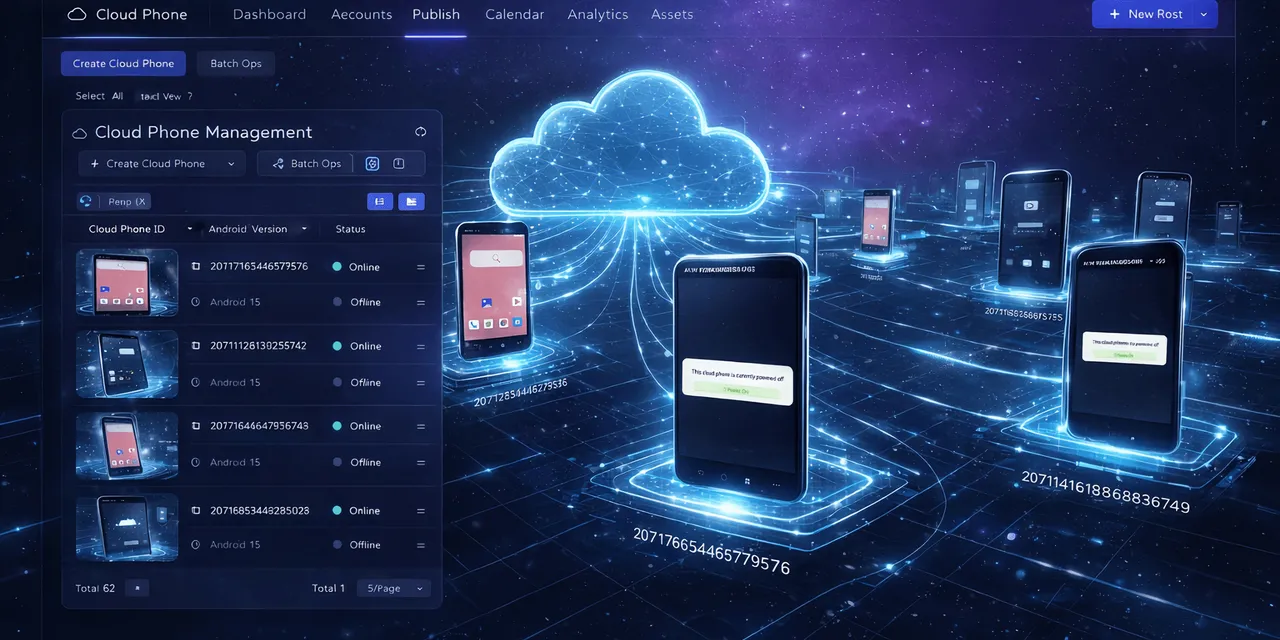
A cloud phone gives the workflow a remote Android device.
That matters because the task can run where the app actually lives.
Instead of asking an AI agent to pretend the mobile app is a website, the team can run app workflows on cloud phones and use scripts, logs, and AI assistance around them.
The mistake to avoid
Do not think of browser agents and cloud phones as enemies.
They solve different parts of the workflow.
A practical setup might look like this:
- browser tools for dashboards and web research;
- cloud phones for Android app execution;
- scripts for repeatable app steps;
- AI for script generation, debugging, and exception classification;
- humans for sensitive account decisions.
The question is not “browser agent or mobile automation?” The question is “which environment does this task actually need?”
What to check before automating a mobile app workflow
Use this checklist:
- Does the task require a real Android app?
- Does it depend on account login state?
- Does it hit permission prompts?
- Does it need gallery, file, camera, or notification access?
- Does the result need to be recorded in a dashboard?
- Can failures be grouped by reason?
- Which failures should stop for human review?
If several answers point to Android-specific behavior, cloud phones are likely a better execution layer.
How QCCBot fits
QCCBot is designed for teams whose work crosses that browser-to-mobile boundary.
You can use cloud phones to run Android apps, AutoJS scripts to repeat app steps, xeasy code AI to generate or debug scripts, and AI Guardian to help identify when a task is stuck.
This gives teams a practical bridge: AI-assisted workflow management for real mobile app work, not only web pages.
If your automation stops when the work enters a phone app, QCCBot can help you run mobile workflows on Android cloud phones with AI script and exception support.
How to combine browser and mobile automation
A practical team does not need to choose only one side. Many workflows need both.
For example, a social commerce workflow may start in a spreadsheet, continue in a web dashboard, and then move into a mobile app for account checks or content publishing. The browser part can organize data. The mobile part needs Android cloud phones.
One useful pattern is:
- use the web dashboard to decide which accounts need work;
- send the account list to a cloud phone group;
- run the mobile app task on Android devices;
- record the result back into a review list;
- let humans handle sensitive exceptions.
This keeps each tool in the environment where it is strongest.
Signs your workflow has crossed the browser boundary
You probably need a mobile execution layer when the task depends on:
- an app-only feature;
- mobile login state;
- Android permissions;
- gallery or file access;
- push notification prompts;
- app region behavior;
- a mobile-only warning screen.
If the work keeps failing because the browser cannot see these states, the issue is not the AI model. The issue is the missing environment.
What a good setup looks like
A good setup gives operators one clear result. They should not need to know whether every step happened in a browser, cloud phone, script, or AI recovery flow.
They should see:
- the account group;
- the task that ran;
- success and failure counts;
- failure reasons;
- human review items.
That is the bridge between browser agents and mobile app automation.