Selector errors are one of the most common reasons AutoJS scripts fail.
The script expects a button, text label, or UI element. The app shows something else. The script cannot find the target, so the workflow stops.
For developers, this is a debugging problem. For operators, it feels like the script is broken and nobody knows why.
What people search for
The search usually sounds like:
- AutoJS selector not working
- AutoJS cannot find button
- Android automation text not found
- fix AutoJS selector error
- app UI changed selector failed
These are practical searches from people trying to get a task moving again.
What a selector error means
A selector error usually means the script looked for something that was not available in the current screen state.
That can happen because:
- the app UI changed;
- the text changed;
- the app loaded slowly;
- the wrong account state appeared;
- a popup blocked the expected screen;
- the script moved too fast;
- the selector was too specific;
- the device language or region changed.
The selector itself may not be the only problem. The screen context matters.
First question: is the script on the right screen?
Before changing code, check whether the script reached the expected page.
If the script is on the wrong screen, changing the selector may not help. The real issue may be navigation, login, popup, or timing.
Ask:
- What screen should appear?
- What screen actually appeared?
- Did the app load fully?
- Did a modal cover the target?
- Did the account see a different version of the app?
This prevents unnecessary code changes.
How AI helps debugging
AI can help translate a technical error into a practical diagnosis.
With logs and screen context, AI can suggest:
- whether the selector is too strict;
- whether a wait should be added;
- whether the app text changed;
- whether a popup handler is needed;
- whether image recognition may be more stable;
- whether the workflow should stop for review.
The best AI debugging is not magic. It is context-aware troubleshooting.
A safer fix process
Use a staged fix:
- Reproduce the failure on one cloud phone.
- Capture the screen state.
- Identify whether the issue is selector, timing, popup, or navigation.
- Adjust the smallest possible part of the script.
- Test on a few devices.
- Roll out only after the logs look clear.
This protects the batch workflow from a rushed fix.
How QCCBot fits
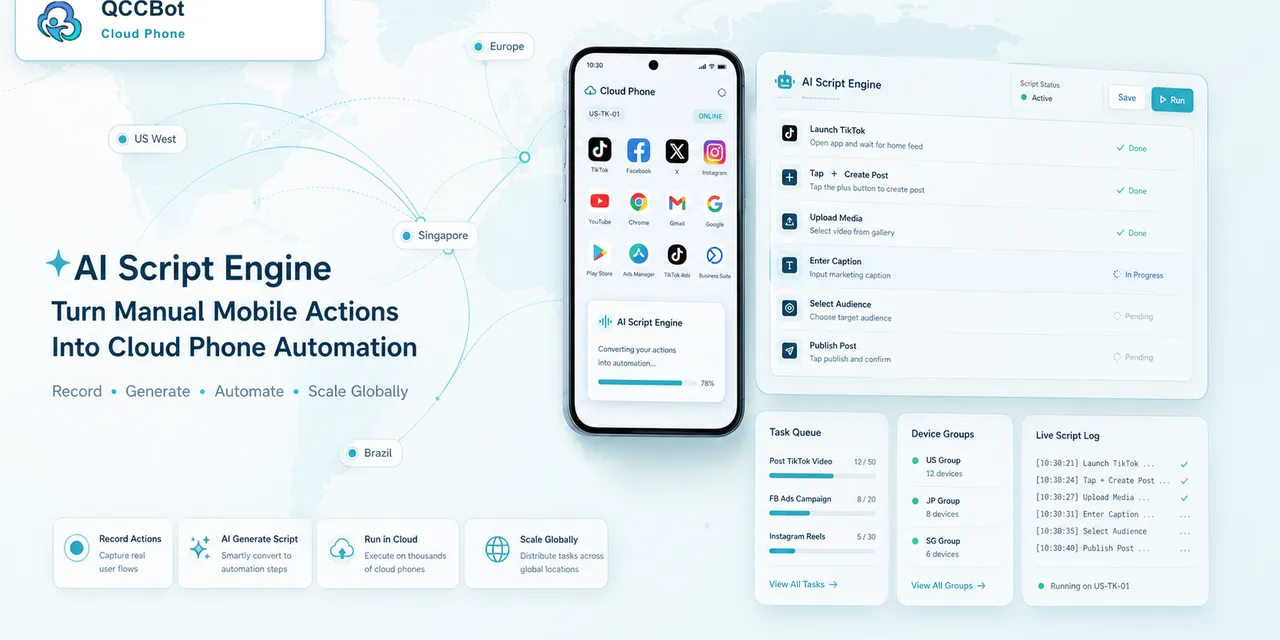
QCCBot’s xeasy code AI can help generate and debug AutoJS scripts. QCCBot cloud phones provide the Android runtime, while task logs and exception handling show where the workflow stopped.
If selector errors keep slowing down your mobile automation, QCCBot can help your team test, debug, and refine AutoJS scripts on real Android cloud phones.
What good scripts do differently
Reliable scripts are not just scripts that work once.
They:
- check whether they are on the right screen;
- wait for important elements;
- handle known popups;
- stop on unknown pages;
- log major steps;
- avoid risky blind tapping;
- separate safe retry from human review.
Selector errors become easier to fix when the whole workflow is observable.
How to write more durable selectors
There is no selector that survives every app update, but some habits help.
Avoid relying only on screen coordinates when a text or element-based signal is available. Coordinates may change across device sizes, language settings, and app versions.
Avoid selectors that are too broad. If the script taps the first matching text on the page, it may work until the app adds another similar label.
Use checks around important actions:
- confirm the page before tapping;
- wait for the target state;
- verify the next page after tapping;
- log the reason when the expected state does not appear.
This makes failures easier to understand.
When image recognition is useful
Image recognition can help when text selectors are unstable or when the app uses custom UI elements. But it also has limits. Theme changes, image compression, language changes, and different device resolutions may affect matching.
The best workflow often combines multiple signals: page text, known buttons, visual clues, and safe stop conditions. AI can help decide which signal failed, but the script should still be tested on real cloud phone states before batch rollout.
A beginner-friendly debugging path
If you are not an AutoJS expert, use this order:
- Check whether the app opened the expected page.
- Confirm whether the element still appears on screen.
- Check whether the element text changed.
- Check whether the element moved into a different container.
- Add a screenshot to the failed step.
- Test the fix on one cloud phone.
- Run a small batch before running the full group.
This path is slower than guessing, but it saves time because it separates UI problems from account, network, and timing problems.
What AI should explain in plain language
AI debugging is most useful when it translates a script error into operational language. For example:
- “The script expected a button named Continue, but the screen now shows Next.”
- “The app is on the login page, so this is not a selector bug.”
- “The page loaded slowly, so the script should wait longer before searching.”
- “The element exists, but it is inside a different screen area.”
This kind of explanation helps non-developers understand whether they should retry, pause, ask for account review, or send the script back to a maintainer.
How to avoid making the script fragile again
After fixing a selector, do not only update one line and move on. Add a fallback or a checkpoint where possible.
Useful improvements include:
- checking page title before clicking;
- waiting for the expected screen state;
- adding a known popup handler;
- using multiple signals for important actions;
- logging the exact step before each risky click.
The goal is not to make AutoJS perfect. The goal is to make failures easier to diagnose and safer to recover.