Many people do not search for “mobile automation architecture.” They search for a much more painful question: “Why does my AutoJS script work on one phone but fail on the others?”
That question usually appears after the demo looks successful. One cloud phone runs the task. The script clicks the right button, waits, submits, and finishes. Then the team runs the same script on 20 or 50 cloud phones, and suddenly the result becomes messy.
Some devices pass. Some stop on a popup. Some are logged out. Some load slowly. Some open a slightly different page.
The script is not always the only problem.
The short answer
If an AutoJS script works on one phone but fails on many, check device state before you check the code. A batch run adds more variables: account login status, app version, permission prompts, network delay, starting page, screen resolution, region settings, and task timing.
The right fix is usually a workflow fix, not just a code fix.
Why one successful run can be misleading
A single-device test proves that the script can work under one set of conditions. It does not prove that the script can survive normal variation.
When a script runs across a cloud phone group, each phone may have a different state:
- one account is already logged in;
- another account is waiting for verification;
- one app shows a welcome screen;
- another app opens directly to the home feed;
- one device has a permission prompt;
- another loads slowly because of network conditions;
- one region sees a slightly different UI.
If the script assumes every device starts from the same screen, the batch run will break.
Start with the starting state
Before editing the script, ask: “Did every cloud phone start from the same place?”
For repeated tasks, define a clean starting state:
- the app is installed and updated;
- the account is logged in;
- the app is on the expected page;
- required permissions are already handled;
- the network is usable;
- no update prompt is blocking the screen;
- the device group belongs to the right project or region.
This sounds basic, but it is where many batch failures begin.
Check whether the script is too brittle
Some scripts are written like a perfect path: click this, wait two seconds, click that, submit. That works only when the UI behaves exactly as expected.
A more durable script checks the screen before acting. For example:
- confirm that the target button exists;
- wait for a page element instead of waiting a fixed number of seconds;
- detect common popups;
- stop safely if the account is on a sensitive screen;
- record which step failed.
The goal is not to make the script magical. The goal is to make the failure readable.
A simple failure classification
When a batch run fails, avoid opening devices randomly. Group the failures first.
Useful labels include:
- login required;
- app loading timeout;
- permission prompt;
- UI changed;
- selector not found;
- network retry screen;
- human review needed;
- safe to retry.
Once the failure types are visible, the next action becomes clearer. You may not need a developer for every failure. Some devices need a retry. Some need login review. Some need the script updated.
Where AI helps
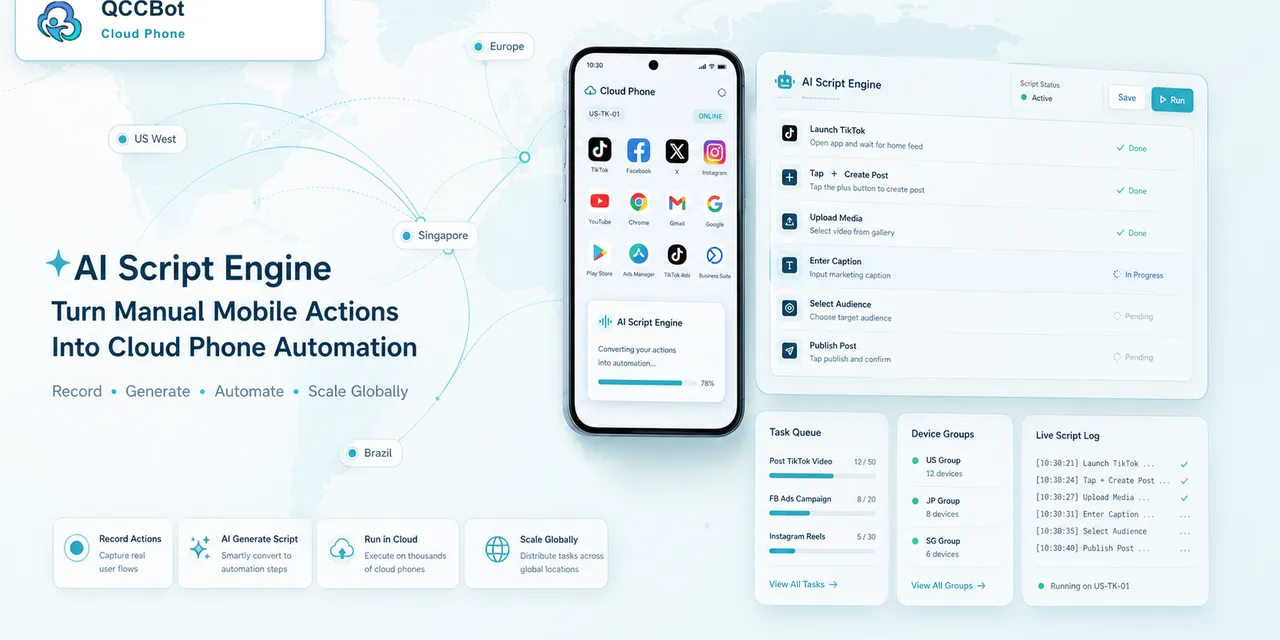
AI is useful when the problem is repeatable and visible. QCCBot’s xeasy code AI can help generate AutoJS scripts from plain requirements, inspect likely failure points, and suggest or apply fixes when a script stops.
QCCBot’s AI takeover capability is different from ordinary retry logic. When enabled for suitable workflows, it can attempt to recover from recognizable script exceptions, guide the flow around a known obstacle, or mark the case for human review when recovery is not safe.
That matters because batch automation needs both speed and boundaries.
What not to automate
Do not let AI blindly handle everything.
Some screens should stop the workflow:
- payment prompts;
- identity verification;
- account risk warnings;
- password changes;
- platform policy notices;
- actions that may affect account safety.
The best workflow separates safe recovery from human-review cases.
A better batch testing process
Use this process before scaling:
- Test the script on one cloud phone.
- Test it on three to five phones with different account states.
- Record the failed step for every device.
- Group failures by reason.
- Add pre-checks for common starting-state issues.
- Add recovery only for safe, repeated exceptions.
- Expand to a larger cloud phone group.
This prevents the team from mistaking a lucky demo for a reliable operating workflow.
Practical takeaway
When an AutoJS script works on one phone but fails on many, do not jump straight into rewriting the whole script. First check the starting state, app state, permissions, account status, and failure categories.
If your team is trying to make Android app automation reliable across many cloud phones, QCCBot provides cloud phone groups, AI-assisted AutoJS scripting, task logs, and controlled exception recovery in one workflow.