An app update can break a script that worked yesterday.
The button moved. The label changed. A new popup appears. The home page loads differently. The script still runs, but it cannot find the screen it expects.
This is normal in mobile app automation. The key is not to prevent every app update. The key is to build a workflow that notices changes quickly and helps the team repair the script safely.
The short answer
When an app update breaks an AutoJS script, first identify which screen changed. Do not rewrite the entire script immediately. Compare the last known good run with the failed run, label the new state, update only the affected step, and test on a small cloud phone group before running at scale.
Why app updates cause failures
AutoJS scripts often depend on visible UI structure:
- button text;
- element position;
- page order;
- popups;
- loading timing;
- navigation labels;
- confirmation screens.
When the app changes any of these, the script may stop even if the business task is still the same.
For example, a “Post” button may become “Next.” A content screen may add a draft warning. A permission prompt may appear after the update. A feed page may load an onboarding card.
The script sees a different world.
Start with the failed step
Do not debug the whole workflow at once.
Ask:
- Which step passed last?
- Which step failed first?
- What screen was visible at failure?
- Was this failure repeated across many devices?
- Did all devices update to the same app version?
- Did only one region or account group see the change?
This narrows the problem.
Add version awareness
If your team runs many cloud phones, app versions matter.
Track:
- app version;
- cloud phone group;
- account group;
- region or project;
- last successful run;
- first failed run;
- screenshot at failure.
This helps the team see whether the problem is a global UI update or only a local state issue.
Use AI for repair, not blind continuation
QCCBot’s xeasy code AI can help inspect the changed step and update the AutoJS script. For example, if a selector changed or a new popup appears, AI can suggest a more flexible detection pattern.
But AI takeover should not blindly continue through unknown screens. Unknown screens should be labeled, reviewed, and then added to the workflow if they are safe.
This keeps automation controlled.
A repair process that works
Use this process after an app update:
- Pause large batch runs.
- Run the task on a small test group.
- Capture screenshots of the failed step.
- Compare with the old expected screen.
- Update only the affected step.
- Add a fallback for the new screen.
- Test across several account states.
- Resume batch runs gradually.
This is slower than guessing, but much faster than breaking the whole batch.
How to prevent repeat pain
You cannot stop apps from changing, but you can reduce the cost of change.
Good workflows include:
- clear task stages;
- screenshots on failure;
- readable logs;
- app version notes;
- small test groups;
- safe fallback rules;
- human review for unknown states.
The goal is to turn “everything broke” into “step 4 needs an update.”
Practical takeaway
When an app update breaks a script, the right question is not “Why is automation unreliable?” The better question is “Can we see exactly what changed and repair only that part?”
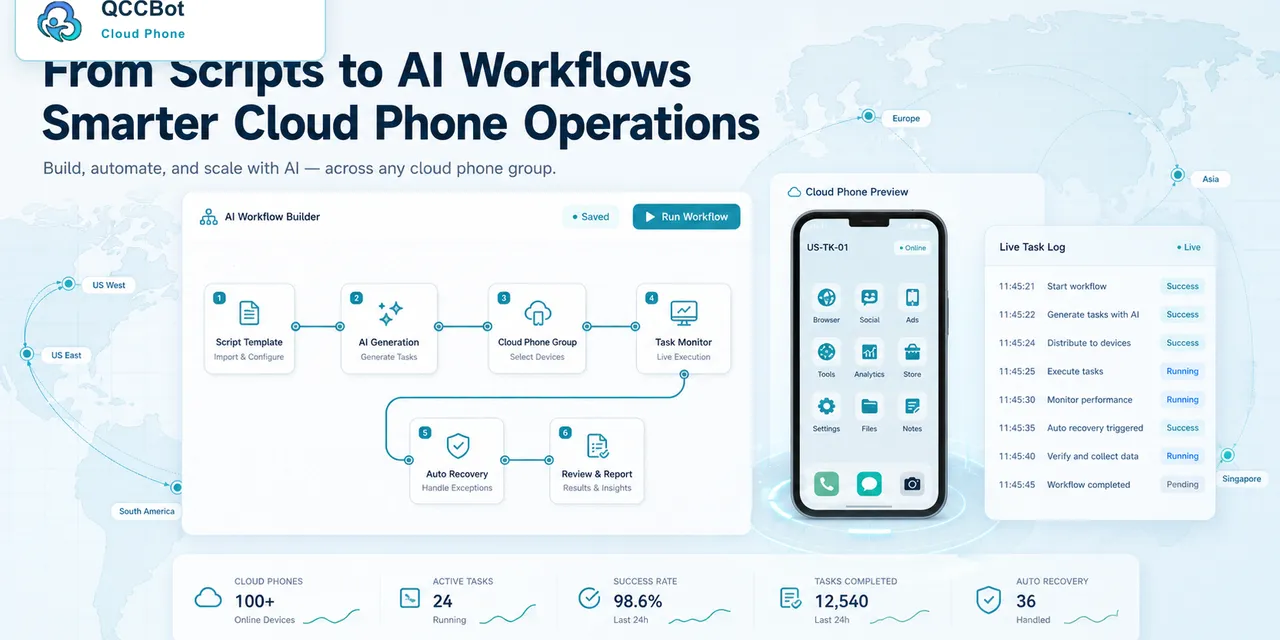
If your team runs repeated Android app workflows, QCCBot helps combine cloud phones, AI-generated AutoJS scripts, screenshots, logs, and controlled recovery so app changes are easier to diagnose.