Sometimes a mobile automation script fails even though the app did not change.
The issue may be Android permissions. Media access, notifications, storage, camera, microphone, location, or accessibility settings can change after app updates, system changes, reinstallations, or account setup. If the script depends on that permission, the workflow stops.
Quick answer
When Android permission reset breaks automation, check whether the app still has media, notification, storage, camera, microphone, location, and accessibility permissions. Also check whether the permission prompt appears only on some cloud phones. The fix is usually a readiness check before the main task.
Why permissions break workflows
Mobile scripts often assume the app can already do certain things:
- open the media picker;
- upload a file;
- send notifications;
- access the camera;
- read storage;
- use accessibility actions;
- load a location-based page.
If permission is missing, the script may wait forever, click the wrong button, or stop at a system prompt.
Why it happens on only some phones
Permission problems are confusing because they may not affect every cloud phone.
One device may have been configured earlier. Another may have a fresh install. One account may have accepted a prompt. Another may have skipped it. An app update may reset one permission path but not another.
That is why permission checks should be part of the workflow, not a one-time setup task.
A practical permission checklist
Before running the main task, check:
- is the app installed and opened once;
- are required permissions granted;
- does the app show a new permission prompt;
- is accessibility access enabled if the script needs it;
- does media upload open correctly;
- does notification access matter for this workflow;
- are permissions consistent across the test group.
This catches many failures before the main script starts.
How AI helps
AI can help identify that a failure is permission-related instead of script-related.
For example, if the script stops before media selection, AI can compare the expected screen with the actual permission prompt. It can suggest adding a pre-check or routing that device to a setup queue.
AI should not blindly approve every system prompt. Some permissions may be sensitive and should follow team policy.
How QCCBot fits
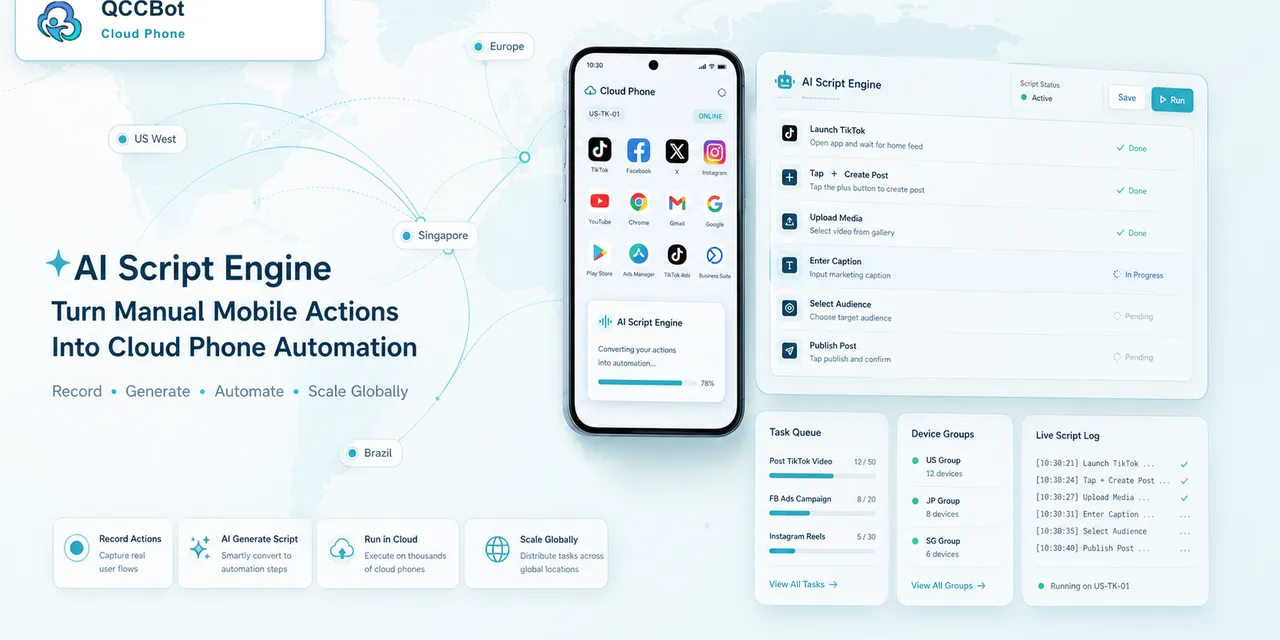
QCCBot helps teams run readiness checks on Android cloud phones, generate AutoJS-style scripts with xeasy code AI, and review logs when workflows fail. Permission failures can be grouped and handled before a campaign run.
If permissions are causing repeated mobile workflow failures, QCCBot can help build cloud phone checks that detect missing permissions before Android app automation scales.
FAQ
Is this a script bug?
Sometimes, but not always. If the app is blocked by Android permission prompts, the script may be fine but the environment is not ready.
Should scripts automatically grant permissions?
Only if the team has approved that permission and understands the risk. Some permissions should be reviewed.
What is the best prevention?
Run a permission readiness check before the main task.