Campaign work inside mobile apps usually fails in small, ordinary ways before it fails in dramatic ways.
An account is logged out. A permission prompt appears. The app updated overnight. A media folder is missing. A button label changed. One phone is still on an old region setting. None of these problems looks important when you check one device. They become expensive when the same task has to run across many Android environments.
Quick answer
Before running Android app automation at scale, teams should verify account login state, app version, permissions, device grouping, network assumptions, test data, expected screens, retry rules, and human review boundaries. A good pre-launch checklist turns mobile automation from a hopeful script run into an observable workflow.
Why a checklist matters
Many teams write the automation first and only create the checklist after something breaks. That is backwards.
The checklist is not paperwork. It is a way to separate three things:
- problems caused by the script;
- problems caused by the app environment;
- problems caused by the account or business process.
Without that separation, every failure looks like a script bug. Operators waste time rewriting automation when the real issue is a login challenge, a region mismatch, or a blocked account.
The pre-launch checklist
Start with the environment:
- Are the cloud phones assigned to the correct project or campaign group?
- Are all target apps installed and updated to the intended version?
- Are required permissions already granted?
- Are time zone, language, region, and proxy assumptions correct?
- Are test accounts separated from production accounts?
Then check the workflow:
- What screen should the task start from?
- What screen proves the task reached the right place?
- Which popups are expected and safe to handle?
- Which screens require human review?
- What counts as success, partial success, and failure?
Finally, check the operating process:
- Who reviews the first test run?
- How many devices are safe for the first batch?
- What log fields should be captured?
- When should the run pause instead of retrying?
- Who owns the final decision if the app shows an unfamiliar warning?
A simple rollout pattern
Do not launch a new mobile workflow on every phone at once.
A safer pattern looks like this:
- Run on one known-good cloud phone.
- Run on three to five phones with different account states.
- Review screenshots, logs, and error categories.
- Update the script or recovery rules.
- Run on a medium batch.
- Expand only when failure types are understood.
This pattern is slower on the first day and much faster over the whole campaign.
Where AI helps
AI can help turn the checklist into an AutoJS script, explain why a run failed, and suggest a repair when selectors, prompts, or page states change.
AI can also help classify failures. For example, a timeout, a login screen, and a permission prompt should not all be treated the same. They need different next steps.
The important boundary is control. AI should not silently click through account-sensitive warnings or business decisions. A good workflow tells AI what it may recover and what it must send to a human.
How QCCBot fits
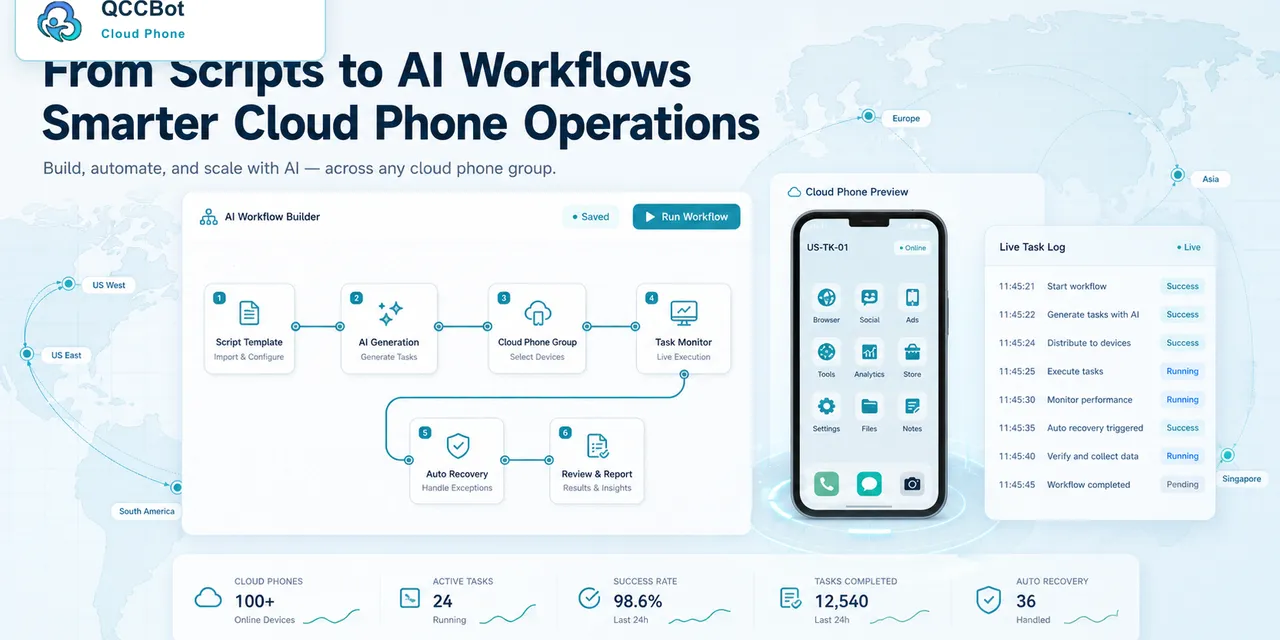
QCCBot helps teams run this kind of pre-launch workflow on Android cloud phones. Teams can group cloud phones, generate and debug AutoJS-style scripts with xeasy code AI, monitor task logs, and use AI takeover only for approved exception types.
If your team is preparing repeated Android app work and wants fewer surprise failures, the QCCBot official website shows how AI-assisted cloud phones can support campaign readiness checks and batch mobile operations.
FAQ
Should every app workflow have a checklist?
Yes, if the workflow affects many accounts, repeated publishing, customer messages, marketplace tasks, or anything that is hard to undo.
Is the checklist only for technical teams?
No. Operators often know the real failure points better than developers. The best checklist combines operator experience with script logic.
What is the first thing to automate?
Start with checks, not final actions. Verifying login, permissions, page access, and expected screens usually creates value before full automation is ready.